Band Coach is one file. Open it in a browser, allow the microphone or plug in a MIDI keyboard, and it listens while you play or sing — showing whether each note is on pitch and on time, then picking the next thing to practise from what it just heard.
Who it’s for
Anyone learning an instrument by ear, without a teacher in the room every session: a beginner working through where the notes are, a returning player brushing up pitch and timing, or a teacher who wants a between-lessons practice log. It is not a substitute for a teacher — see what it can’t hear below.
The trainer
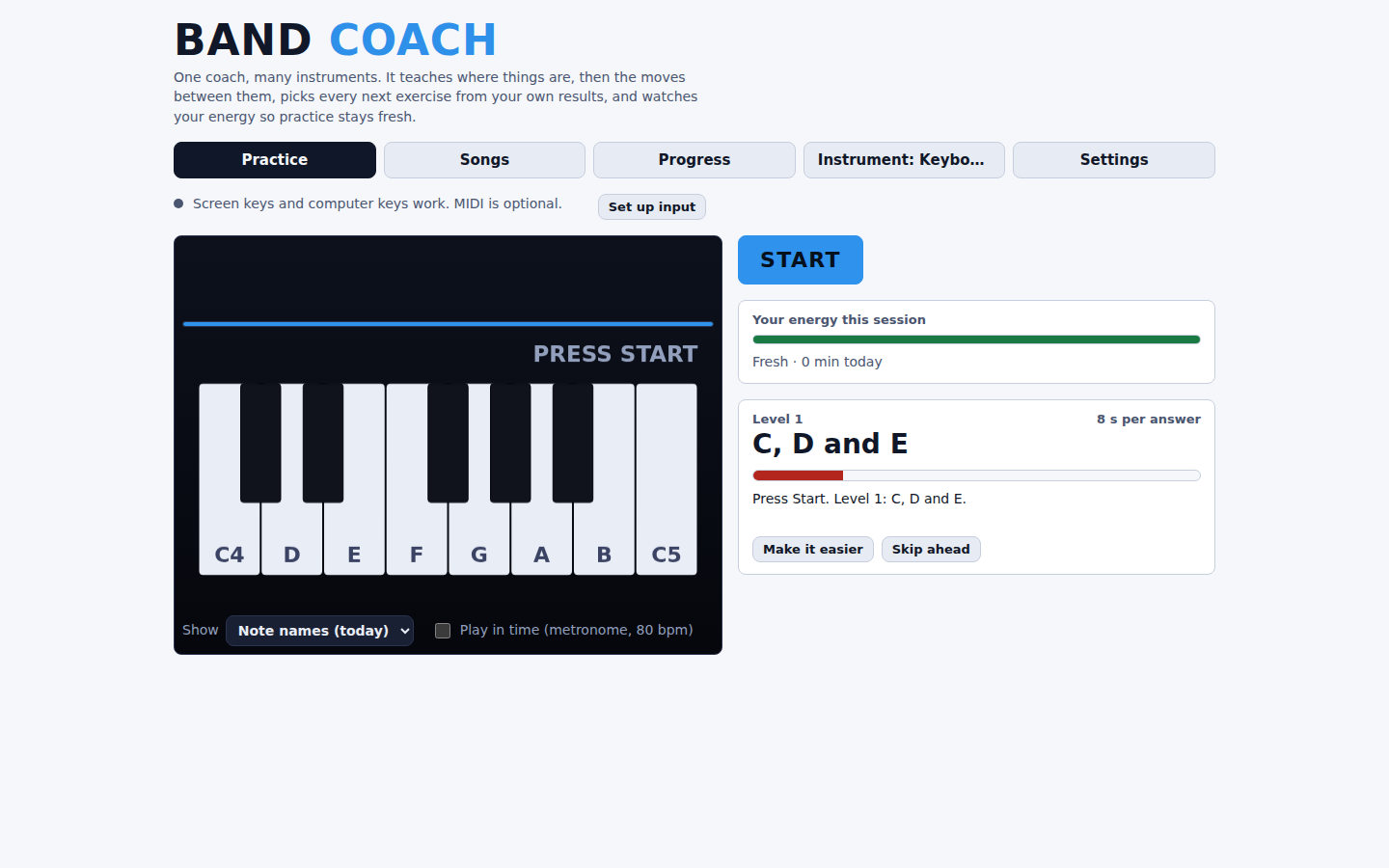
Pick an instrument, press Start, and Band Coach gives you notes or short phrases to play. Every answer updates a per-note memory score, so the next exercise is always whichever note or move that instrument’s model says you’re weakest on or haven’t touched in a while — never a fixed script, never dice. Knowledge fades if you stay away, so old material comes back into rotation on its own. A live energy meter tracks the session and offers a break rather than grinding on regardless.
Instruments
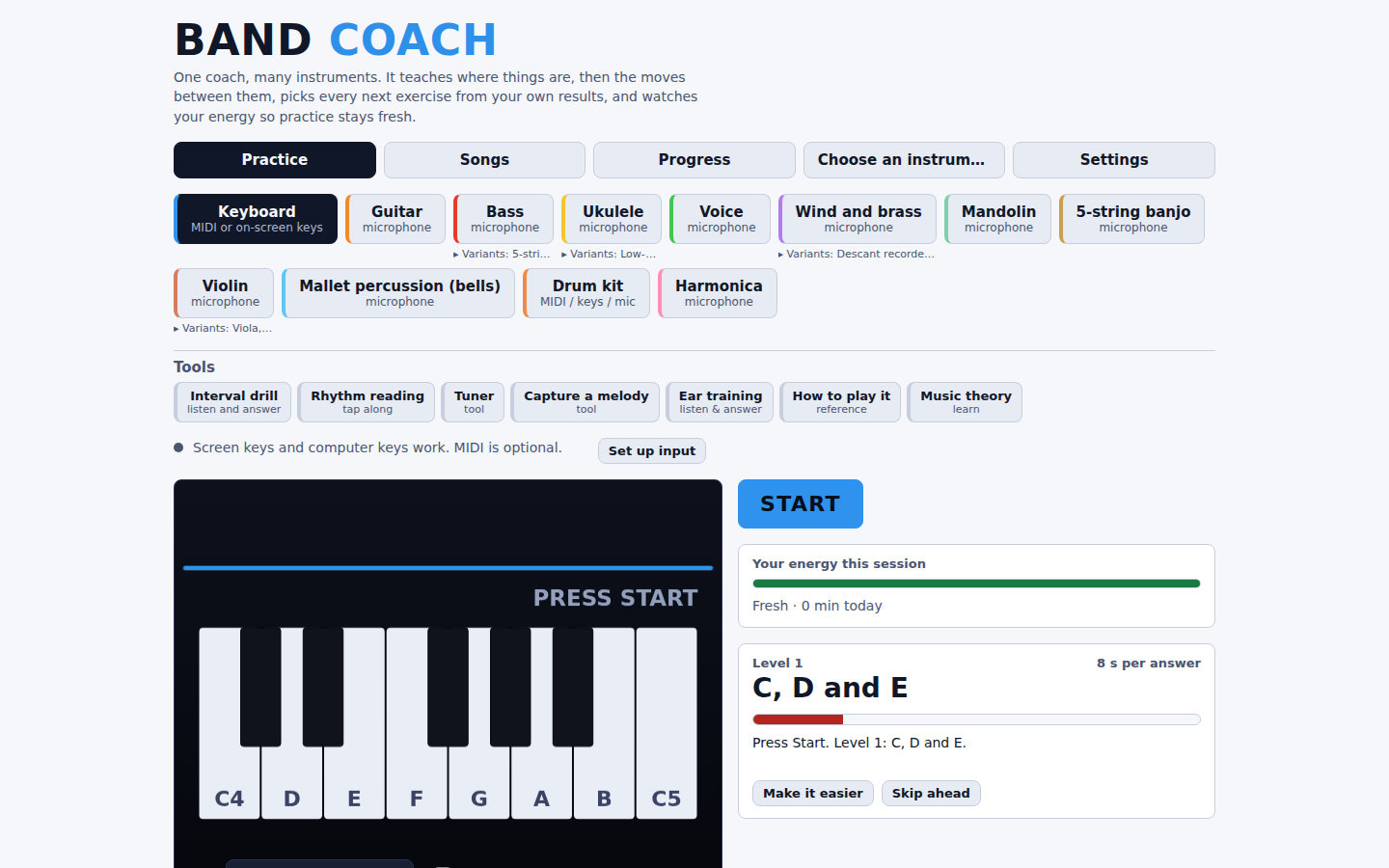
28 instrument trainers listen live, each with its own graded curriculum, grouped by family the same way the instrument picker groups them:
- Keys and voice — Keyboard (MIDI keyboard, on-screen keys, or the computer keyboard), Voice
- Fretted (microphone) — Guitar, Bass, Ukulele, Mandolin, 5-string banjo, 5-string bass, baritone ukulele, low-G ukulele
- Bowed strings (microphone) — Violin, with Viola, Cello and Double bass grouped under it in the picker
- Wind and brass (microphone, pick your instrument so written notes match what you read) — Trumpet, Clarinet, Alto sax, Tenor sax, Flute, French horn, Trombone, Descant recorder, Tin whistle and Oboe, all grouped under Wind and brass in the picker
- Free reed (microphone) — Harmonica
- Percussion — Mallet percussion (bells) and a full drum kit, playable on an e-kit or a real kit over MIDI, the computer keys, clicking the drawn kit, or the microphone for kick, snare and hi-hat
Guitar, bass and ukulele hear the pitch you play, not which string you used, so any fingering that lands on the right note counts. Chord listening on those three is experimental — a microphone hears a chord as one blended sound rather than separate notes, and a noisy room can fool it either way. Keyboard, guitar, bass, ukulele and voice can each show the note as a name, on a music staff, or both.
Alongside the instrument trainers sit two more graded trainers that use the same Start-button screen: a quick Ear training mode (intervals and chords, played and picked from a list of answers) and Rhythm reading (read a printed bar, then tap it back on the space bar, a big pad, or any key on a connected MIDI instrument — marks under the notes show each tap green on time, yellow early or late, red missed).
Beyond the trainer
A Practice / Songs / Progress / Instrument / Settings bar sits at the top of the page at all times. Practice is the instrument trainer above; Instrument is where you choose or switch instruments; Songs, Progress and Settings are below. Ear training, How to play it and Music theory get their own home in a Tools group inside the instrument sheet, alongside the Tuner and Capture a melody.
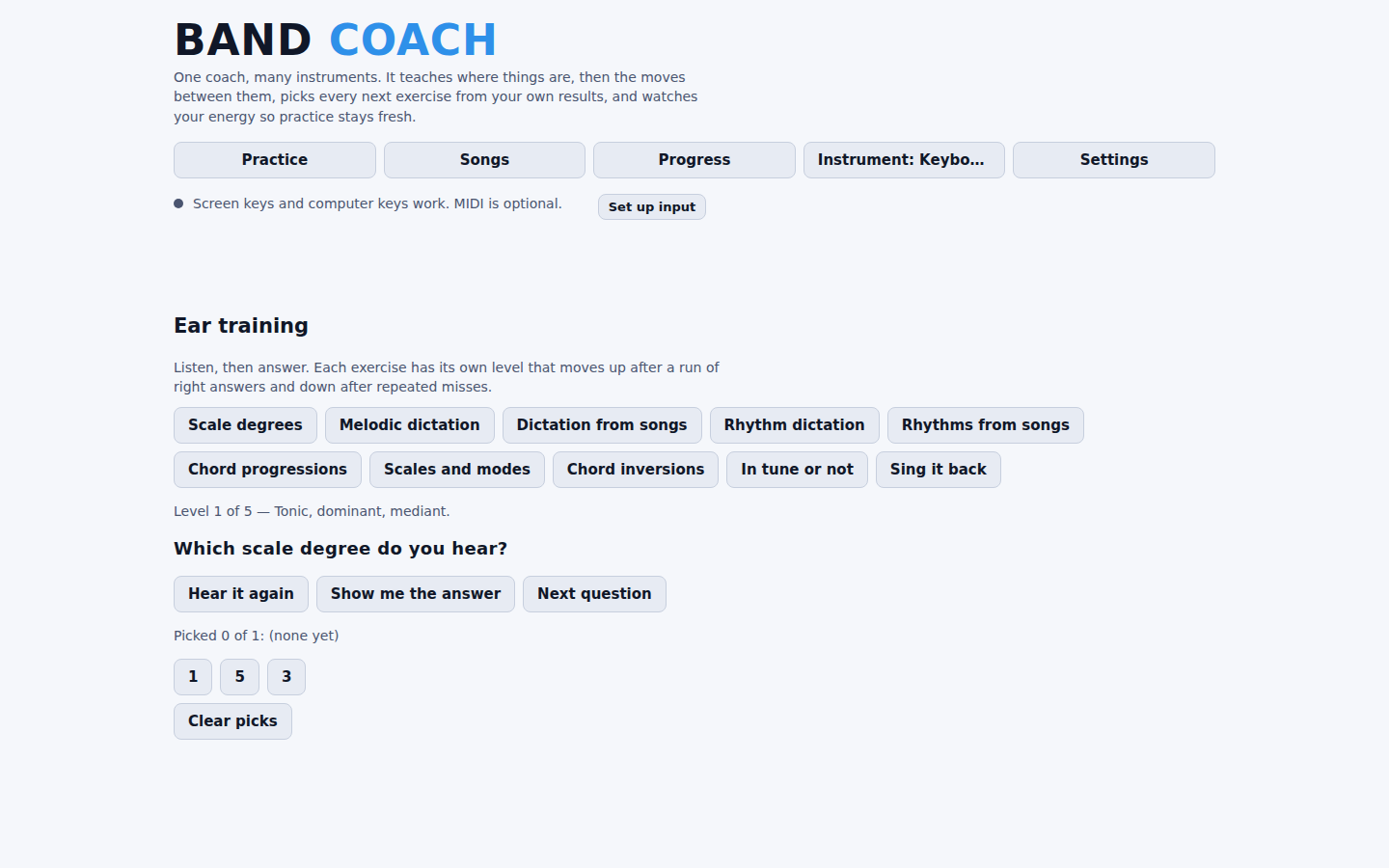
Ear training — a deeper set of eight ear-training exercises, separate from the quick mode above: scale degrees, melodic dictation, rhythm dictation, chord progressions, scales and modes, chord inversions, singing back what you hear, and judging whether a note is in tune — the last two use the microphone to check what you actually sang or played.
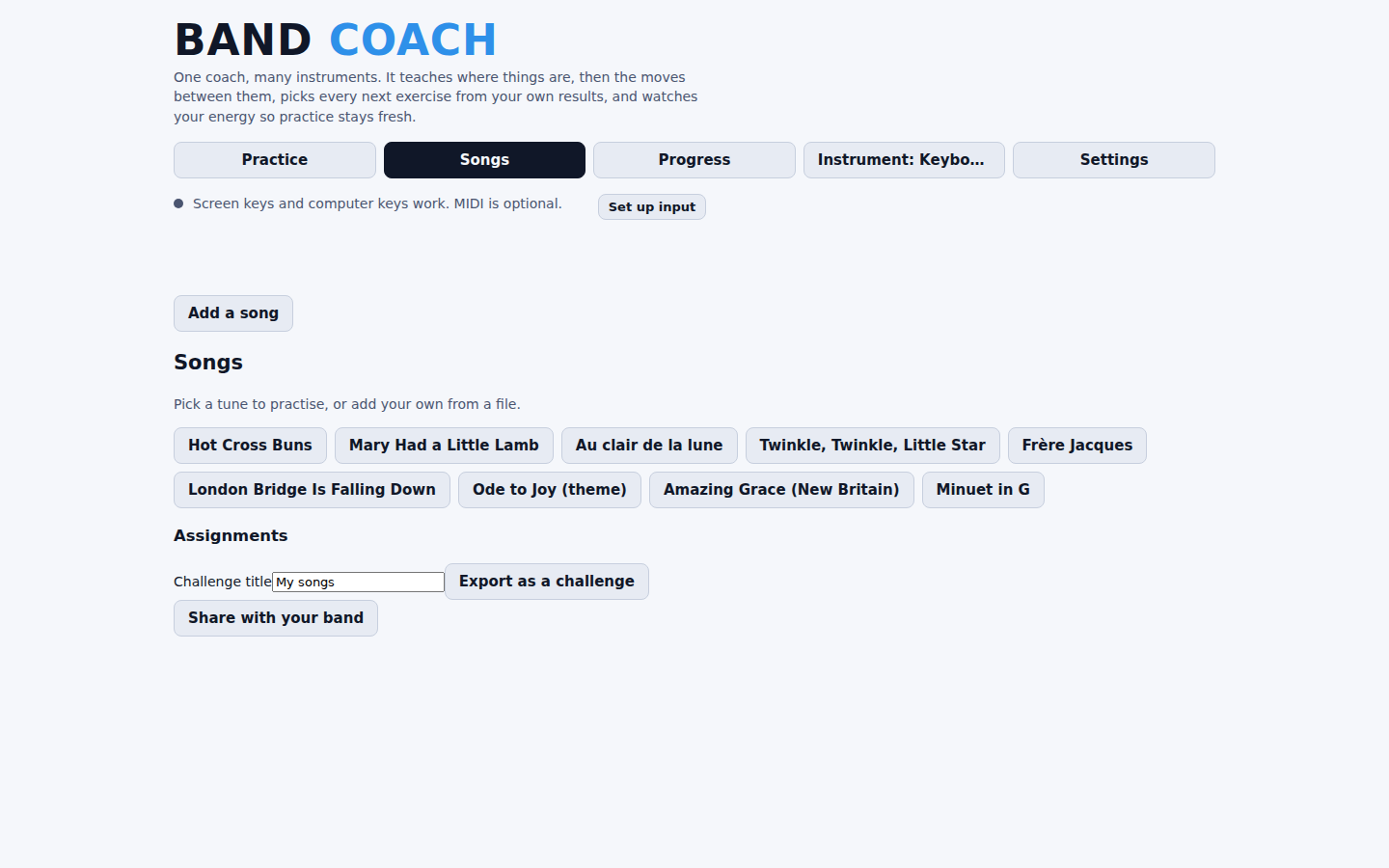
Songs — practise a real tune instead of a graded drill. Nine tunes ship with the app; “Add a
song” also takes a recording (through the microphone) or a file — a score (.mid, .midi,
.abc, .xml, .musicxml, .mxl, or Guitar Pro .gp/.gp5) or an audio recording (.wav,
.mp3, .ogg, .m4a, .flac, .webm). Coming back to a song you left mid-practice offers
Carry on, picking up at the same step and speed you left off on.
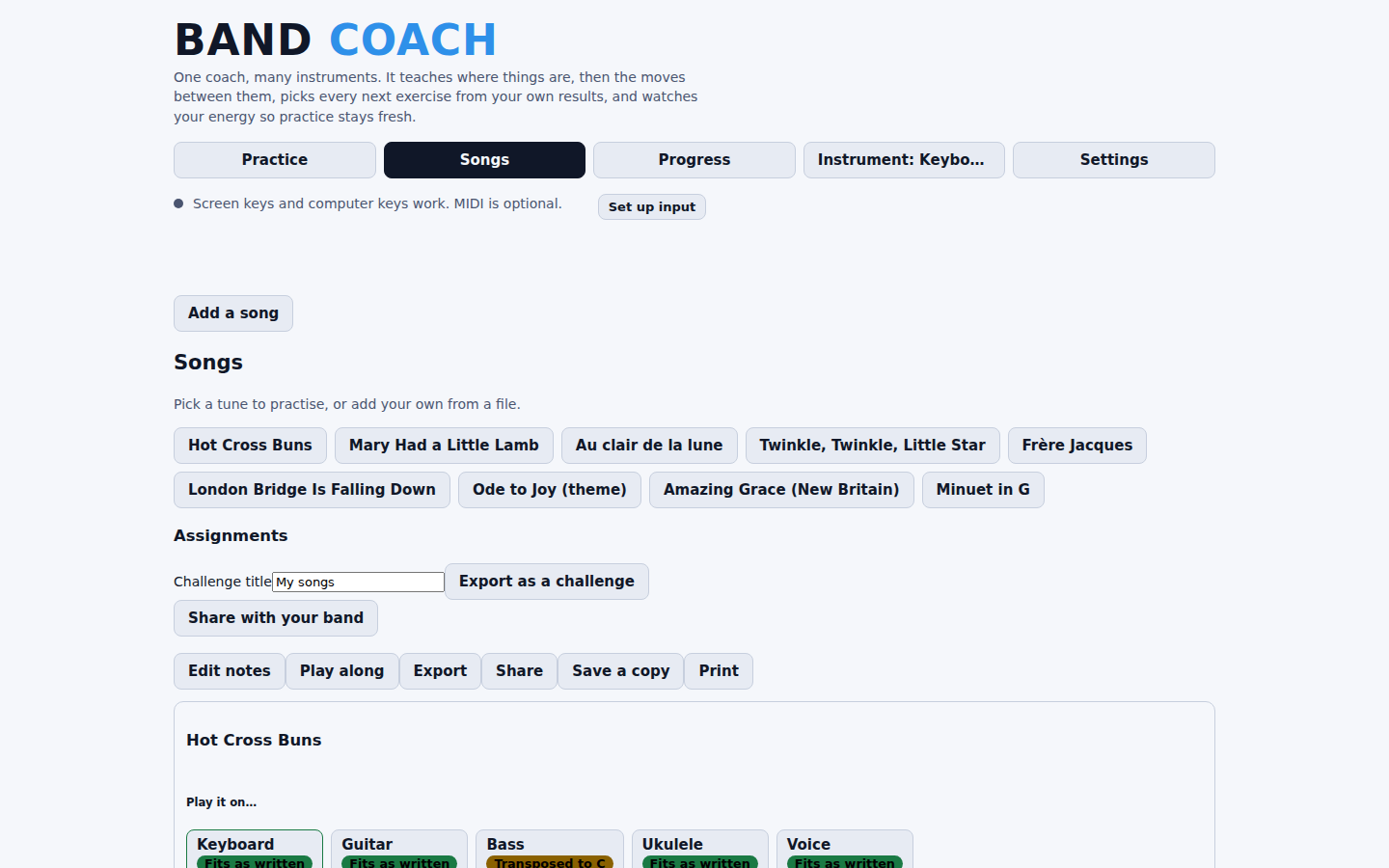
Edit notes — reached from Songs, on any song including a starter tune (editing a starter makes your own copy rather than touching the shipped one): delete, split, merge, tie, retime or shift a note’s octave. Opening it, or Play along below, keeps the Songs button lit in the nav, and each has its own “Back to songs” button.
Music theory — a graded lesson track (keys, scales, chords), an Explore tab for looking up any key/scale/chord and hearing or seeing it on a staff and on your instrument, and a Transpose tab for written versus concert pitch.
How to play it — pick an instrument and a note and see how to sound it: a fretboard for guitar, bass and ukulele, a fingerboard for the fretless strings, a valve or slide diagram for brass, a hole chart for harmonica and recorder-family instruments, plus a plain-text description for screen readers.
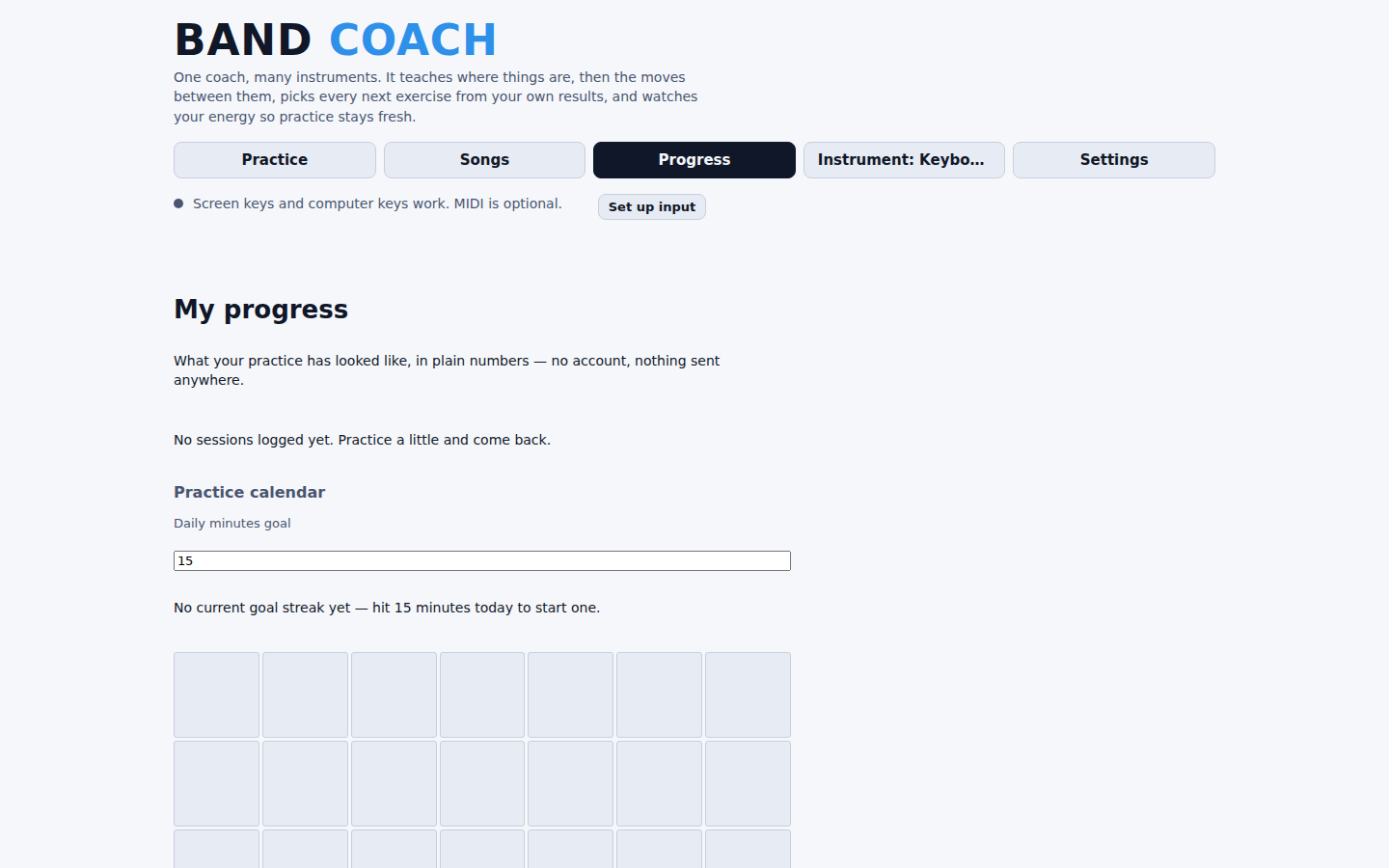
Progress — a plain-numbers report of what practice has looked like: a practice calendar (minutes and level changes, one cell per day, for the last 8 weeks), a daily minutes goal with a streak, a by-instrument breakdown of results, and a one-click “copy a summary for my teacher” report. Nothing here is sent anywhere; it is read straight out of the same local save file everything else uses.
Play along — reached from Songs once a song has a decoded recording: Band Coach works out its tempo, key and chords, then lets you loop any section slower, without changing its pitch, to learn your part. The recording never leaves the device.
Two smaller tools live in the Tools group of the instrument sheet, alongside the trainers above: a Tuner (needle and a per-string reference tone) and Capture a melody (hums or single notes get written down, and turned into a practice lesson on any listening instrument).
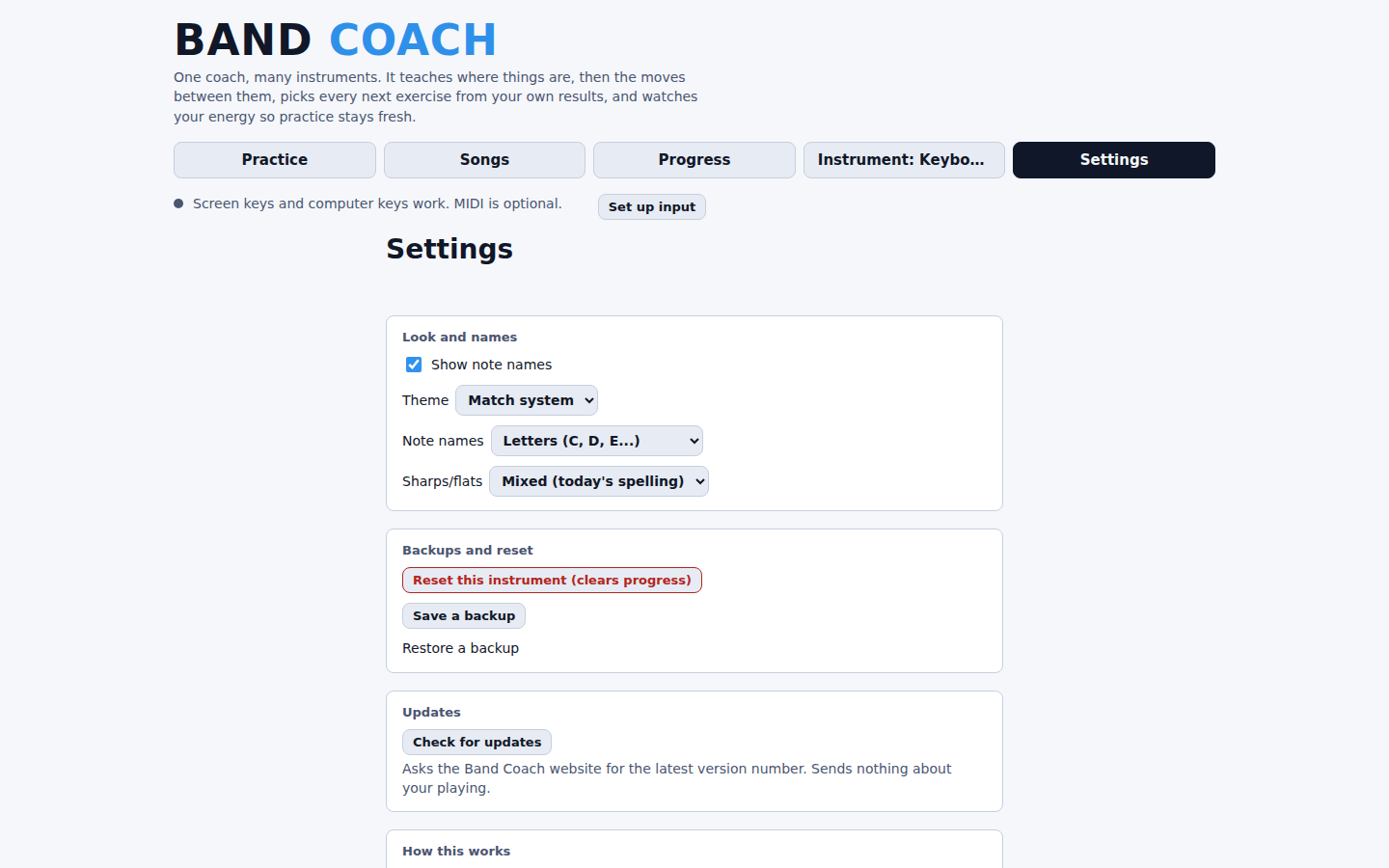
Settings gathers everything you rarely touch: theme (light, dark or match system, plus note naming and sharps/flats), “Save a backup” and “Restore a backup” for your progress and saved songs, and “Check for updates”.
Works on your phone too
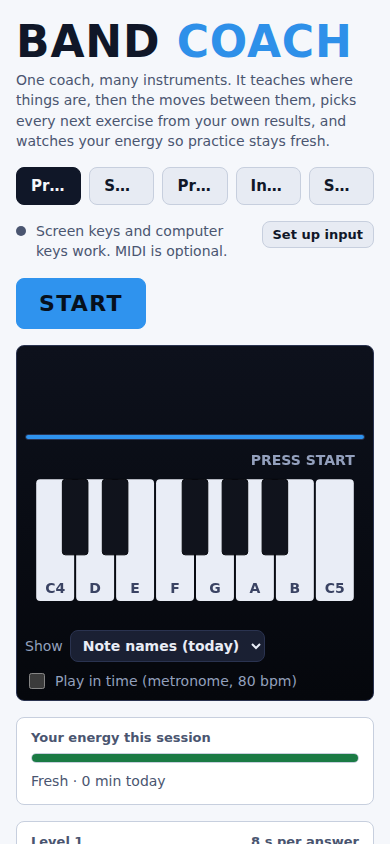
Band Coach’s layout runs down to a 360px-wide screen. It can also be installed as a phone app — “Add to Home Screen” — from back-road-creative.github.io/band-coach, a separate, free copy built from the exact same release. iPhone microphone behaviour under that installed copy hasn’t been measured on a real device yet, so treat it as one to try rather than one guaranteed to work there.
Getting it running
- Download the file
- Double-click it
- Allow the microphone, or connect a MIDI keyboard
That’s the entire setup. There is nothing to install and no account to create. Progress is saved
in the browser, tied to the exact file path Band Coach was opened from — moving or re-downloading
the file can lose it, so use “Save a backup” in Settings to export band-coach-progress.json, and
“Restore a backup” to load one back in.
Requirements
Chrome or Edge, on Windows, Mac, Linux or a Chromebook. Web MIDI does not work in Safari, so Safari users should open the file in Chrome or Edge instead.
What it can’t hear
Band Coach hears pitch and timing. It cannot see posture, breath, bowing or hand position — use a teacher or video for those.
Free. No account. Your sound never leaves your computer.
Band Coach runs entirely in the browser tab you opened it in, with no network calls unless you press Check for updates — there is nothing else to sign up for and nothing to pay for. It’s published under the Apache-2.0 licence; the source is on GitHub.
Documentation
Band Coach’s documentation lives in its repository, next to the code it describes — the README is the manual.